What is the quick setup process for the SnnyPet ZY-245 smart feeder?
Setup takes about 5 minutes: 1. Download the “iCam365” app and create an account. 2. Tap “Add Product” and scan the QR code on the feeder’s bottom. 3. Hold the reset button on the bowl’s side for 3 seconds until the LED blinks. 4. Select your Wi-Fi network and follow the app prompts to finish.
What should I do if my SnnyPet ZY-245 won't connect to Wi-Fi or the network isn't visible?
First, ensure the feeder is plugged into a power outlet, as connection cannot be established on battery power alone. Download and open the iCam 365 app. Make sure the indicator light is flashing blue and you hear the voice prompt.
If the network is not visible:
- Reset the device: Press and hold the WiFi Reset button for 4 seconds until it blinks blue.
- Check Wi-Fi Band: Ensure you are using a 2.4GHz network. If your router uses 5GHz and the device is not compatible, the connection will fail.
- Permissions: Ensure your phone’s Bluetooth, WLAN, and Location Services are all turned on.
How can I track my pet's feeding history on the ZY-245?
- You can view the Feeding Record directly in the iCam 365 app. The app logs every scheduled and manual feeding event in real-time, allowing you to confirm that your pet has been fed successfully even when you are away from home.
Why is there a delay in the feeding record showing up in the iCam 365 app?
- The feeding record is uploaded to the cloud server immediately after the dispensing task is completed. If you don’t see the update, it’s usually due to network latency. Simply pull down to refresh the device page in the iCam 365 app to see the latest logs.
Will changing kibble size affect the portion weight of the ZY-245?
Yes. Since the ZY-245 dispenses food based on the volume of the internal rotor (divided into “copies/portions”), significantly larger or smaller kibble will result in different weights per serving. We recommend weighing the first few portions of any new food and adjusting the number of scheduled servings in the app to maintain a consistent diet.
Will my pet still be fed if the Wi-Fi is down?
- Yes. Once you have set the Timer Feeding schedule in the app, the data is saved locally on the feeder’s chip. The device will continue to dispense meals at the scheduled times even without an internet connection. Please note that you won’t receive app notifications until the Wi-Fi is restored.
What kind of backup batteries do I need?
- The ZY-245 uses 4 x D-cell (No.1) alkaline batteries as a backup power source. In the event of a power outage, the device will automatically switch to battery power to ensure your pet is fed on time.
What do the LED indicator lights on the G761 indicate?
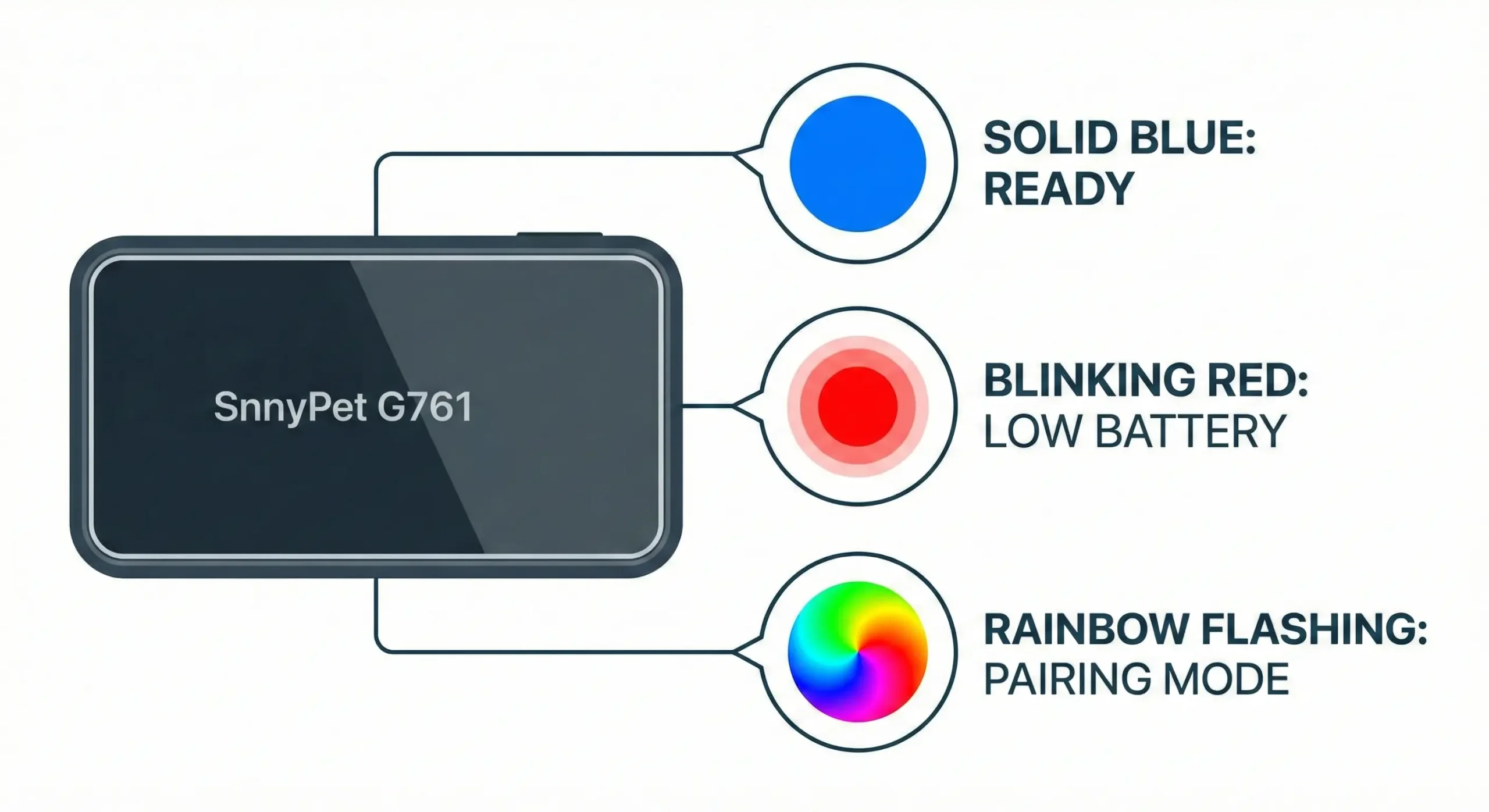
According to the manual: Blue Light Constantly Bright means successfully connected to the network; Blue Light Single Flash means searching for network signal; Green Light Single Flash means searching for GPS signal.
What does the red LED light mean?
Solid Red means the device is currently charging. The light will turn off once the battery is fully charged. Please refer to the Ismate app for specific battery percentage levels.
Can I use the G761 internationally when traveling?
Yes, provided you install a local Nano SIM card that supports the required cellular bands (800/900/1800MHz). The G761 features a physical SIM slot, allowing you to choose a carrier that offers the best coverage in your destination country.
Does the G761 have roaming charges, and what happens if there's no cell coverage?
SnnyPet does not charge roaming fees, but your local SIM carrier might. In areas with no cell coverage, the device cannot transmit real-time data to the app; tracking will resume automatically once a network signal is re-established.
What is the neck circumference range for the G761?
The G761 is designed for pets with a neck circumference between 35cm and 45cm. Please measure your pet’s neck carefully to ensure a secure and comfortable fit.
Can I buy a replacement strap if I cut it too short?
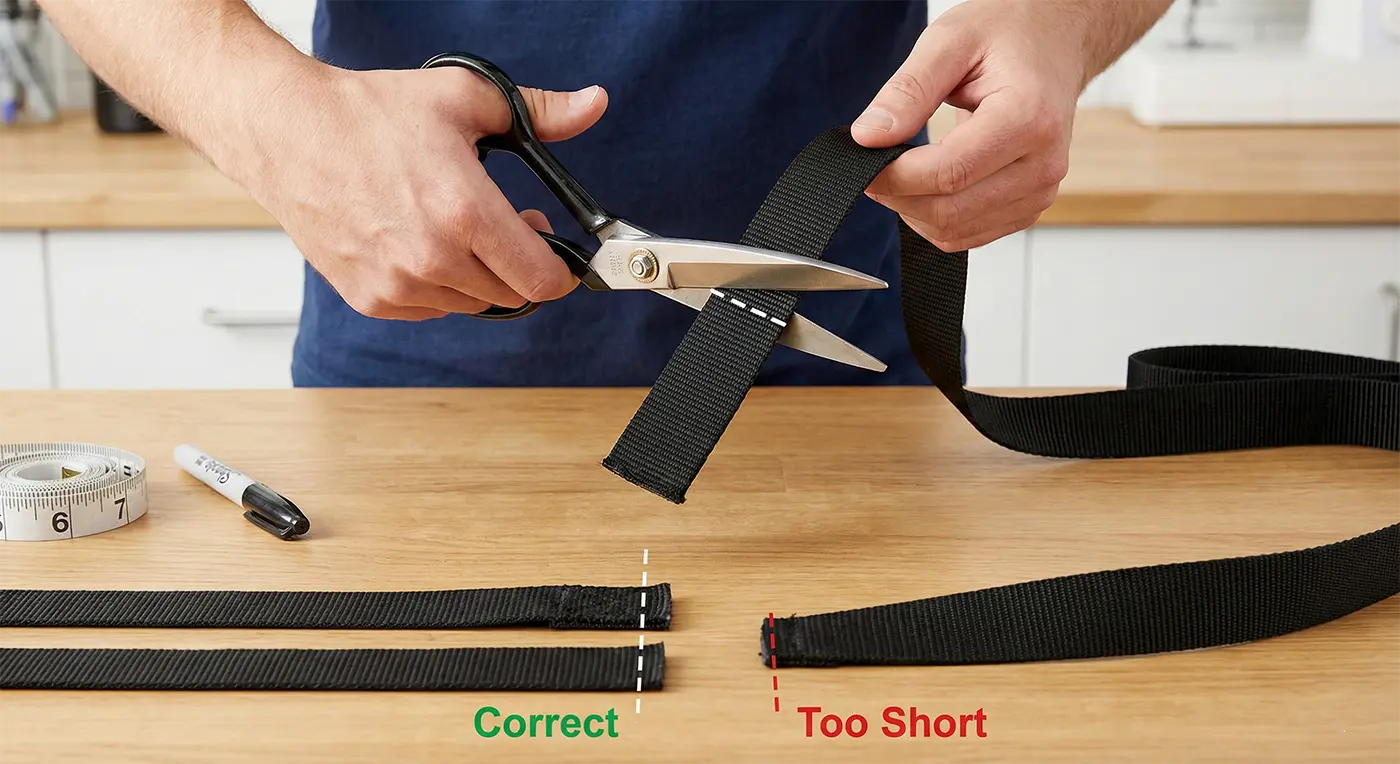
Yes, the webbing is removable and replaceable, and spares can be purchased separately. When trimming, be careful not to cut it too short the first time, as you can always trim more later, but you cannot add length back.
How do I perform a factory reset on my G761 tracker?
To reset the device for a new user, you must unbind and delete the tracker from your Tlife App account. Once deleted, the device can be paired with a new account.
What happens to my personal data when I transfer the G761?
When you delete the device from your Tlife app account, all bound data and historical records are cleared from your account. The device is then fully reset and ready to be bound to a new user.
Where is the best position to place the Q12 bark collar on my dog's neck?
Center the device directly on your dog’s throat. As shown in the manual illustrations, the vibration device and microphone sensor must be centered at the front of the neck to accurately detect barking and deliver effective vibration cues.
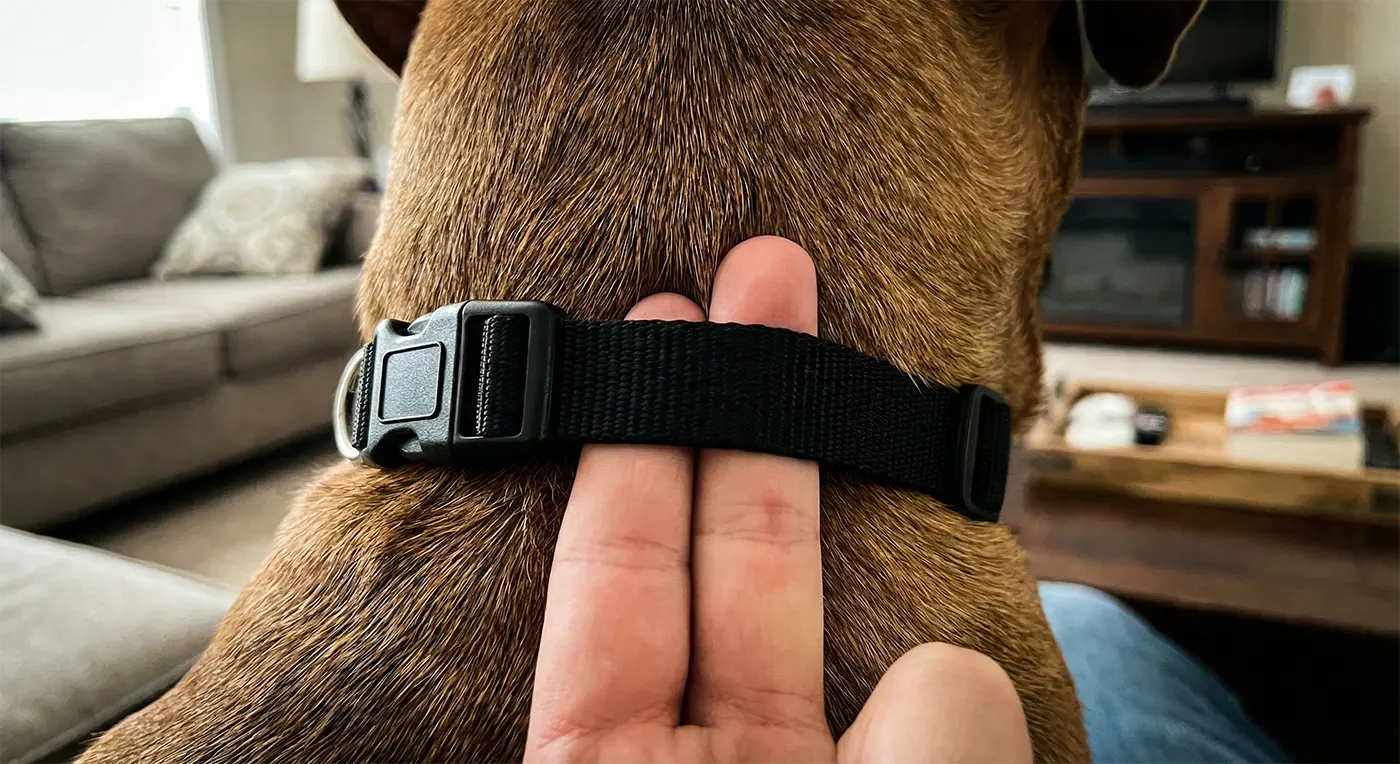
How tight should the Q12 collar be for effective training?
The collar should be snug. According to the manual, it should be loose enough to allow only one finger to fit between the strap and your pet’s neck. A fit that is too loose will prevent the microphone from detecting barks and the vibration from being felt.
Does the Q12 work on dogs with thick fur?
Yes. However, for the best results, the vibration device on the back of the unit needs to be close to the skin. If your dog has an extremely thick coat, you may need to trim the hair in the contact area to ensure the device can accurately detect barking decibels and transmit vibration.
Can my dog wear the Q12 bark collar 24/7?
No. Please do not leave the product on your dog for more than 12 hours. Prolonged wear can lead to skin irritation or rashes due to constant physical pressure on the neck. Check the skin area daily for any signs of sores.
Is it a fire hazard to leave my SnnyPet feeder plugged in while I’m on vacation?
It is completely safe to leave your feeder plugged in continuously, as these devices are designed for 24/7 operation. They include built-in protections like over-current protection, thermal fuses, and flame-retardant materials.
How should I prepare my SnnyPet feeder if I’m leaving for over a month?
For long absences (over 1 month), it is best to completely empty the hopper to prevent food from going stale or attracting pests. If the feeder will not be used during this time, you should unplug it for safety.
My SnnyPet ZY-245 data seems wrong, how do I recalibrate the weight sensor?
Most weight reporting issues can be solved by ensuring the bowl has at least 45 seconds of complete inactivity. If errors persist after a manual refresh in the app, verify that you haven’t switched food brands without updating the “Pet Food Details” section, as different kibble sizes can shift portion weights by up to 3g.
What is the number one cause of hardware failure for SnnyPet collars?
Moisture in the charging port is the primary cause of device failure. Whether it’s the G761 tracker or Q12 collar, the port must be completely dry before connecting the charger. Always shake out excess water, air dry for 30 minutes, or use compressed air after your pet has been in water.